

I create video content for Instagram Reels, TikTok, YouTube, and LinkedIn, so I’m always exploring tools that simplify the process — and I may have found a new favorite.
Instagram’s new video editing app, Edits by Instagram, has already exceeded my expectations. If you’ve tried Instagram’s native editing tools, you know why I was both hopeful and skeptical.
Edits delivers. It’s far more advanced than Instagram’s built-in editor and clearly designed to compete with CapCut, the go-to mobile video editing tool.
The app is sleek, powerful, and surprisingly user-friendly. Whether you’re a seasoned video creator or just starting out, mobile content creators will enjoy this completely free tool.
After testing Edits extensively, here’s a complete guide—from setup to pro tips—to help you elevate your videos.
How to use Instagram Edits: The basics
Before diving into tips, here’s a quick guide to get started with Edits.
Step 1: Download and Sign In
Visit the App Store or Google Play, search for “Instagram Edits”, and download the app. Log in with your existing Instagram account — no new profile required.
Read More: CEO Andy Jassy Shares Insights on Generative AI
Step 2: Create a Project
Once you’re in, you can record directly in the app (up to 10 minutes) or upload clips from your camera roll — perfect for editing on the go or batch-shooting content.
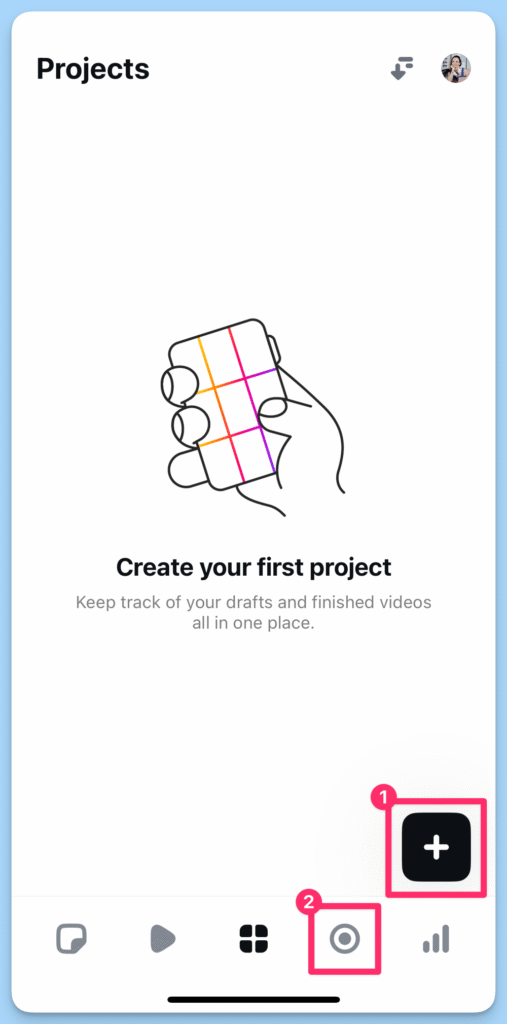
- Add existing media: Tap the ‘+’ button at the bottom right.
- Record new footage: Tap the record button on the bottom menu bar.
Pro Tip: If using both existing clips and new recordings, add your camera roll footage first. You can record new clips directly within the editor afterward.
Step 3: Edit with the Timeline
Edits makes basic timeline editing far easier than Instagram’s built-in tools. The frame-accurate timeline lets you trim, split, rearrange, and sync clips with precision — no more fiddly dragging.
- Zoom: Pinch to zoom in for fine adjustments, or spread fingers to zoom out.
- Reorder clips: Tap, hold, and drag clips to a new position.
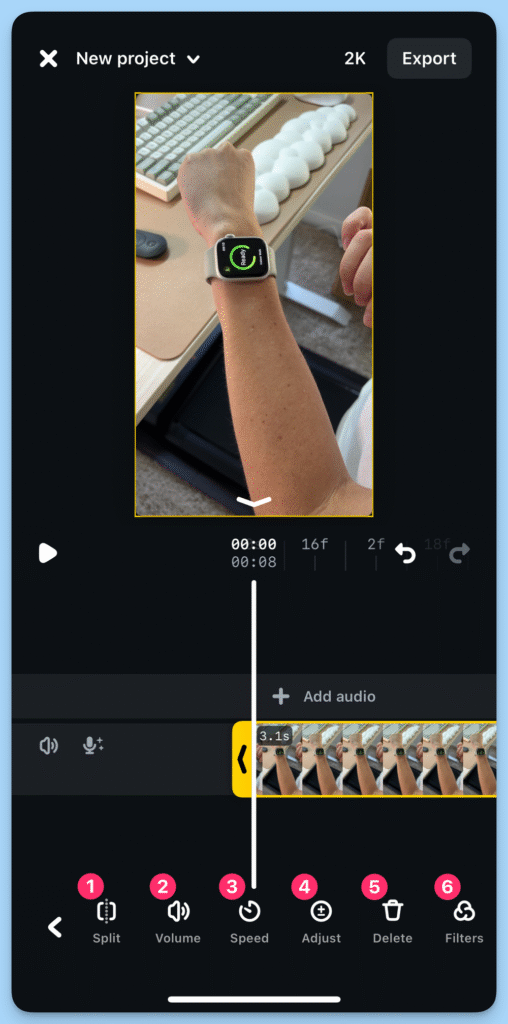
Clip editing options (tap a clip to reveal):
- Split: Cut a clip at a specific point.
- Volume: Adjust or mute sound.
- Adjust: Modify brightness, contrast, warmth, etc.
- Speed: Slow down or speed up (up to 10x).
- Delete: Remove clips (use the undo arrow if needed).
- Filters: Apply subtle or classic IG filters like Paris and Jakarta.
- Green Screen: Remove backgrounds and overlay yourself on other clips.
- Effects: Add zooms, strobe lights, and other visual effects.
- Voice FX: Transform spoken audio (e.g., Helium, Alien).
- Extract Audio: Detach audio from a clip.
- Mirror: Flip footage vertically.
- Replace: Swap a clip while keeping its duration.
- Slip: Adjust the starting point of a clip.
- Duplicate: Copy a clip exactly.
Pro Tip: Explore the filters — some are subtle and elevate your footage without looking unnatural.
Step 4: Add Effects, Text, and Audio
Edits offers fun, creative tools to take your videos to the next level. Make sure no clip is selected on your timeline to access these options:
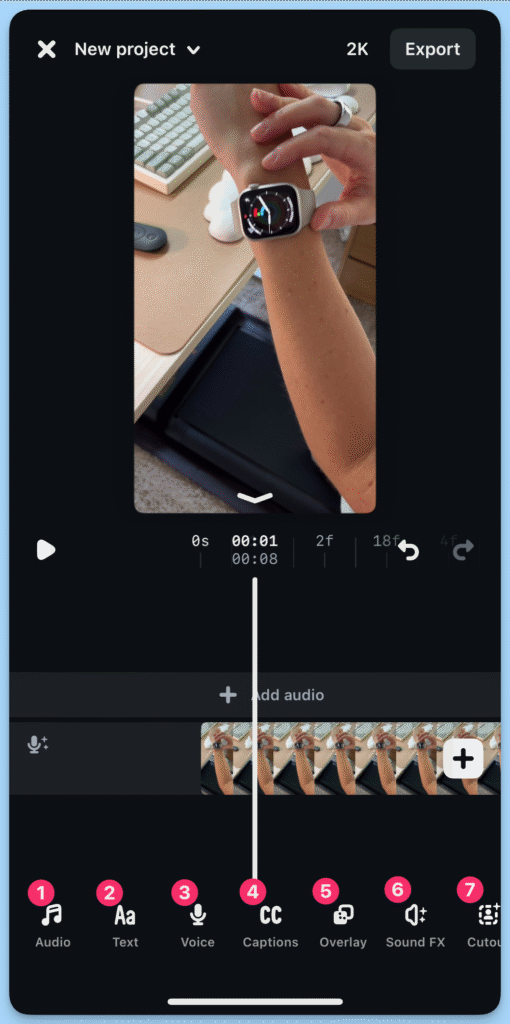
- Audio: Add sounds from Instagram, including any saved tracks.
- Text: Insert text overlays to highlight key points.
- Voice: Record a voiceover directly in the app.
- Captions: Automatically generate captions for your clips.
- Overlay: Layer an image or video on top of existing footage.
- Sound FX: Add engaging sound effects.
- Cutout: Overlay a portion of an image or clip for extra visual flair.
- Stickers: Include popular and new Instagram stickers or GIFs.
Step 5: Export and Share
- When your video is ready, export it in high-quality, watermark-free format (up to 4K) — ideal for Instagram or any short-form platform.
- The video saves to your camera roll, and you’ll also get the option to post directly to Instagram or Facebook.
7 Instagram Edits tips and tricks to help you level up your next video
Edits goes beyond Instagram’s basic editing tools, offering a range of features to make your videos more polished and engaging.
Here’s how to get the most out of the new app:
Save Ideas and Inspiration
Great ideas can strike anywhere, so having a way to capture them on the go is essential.
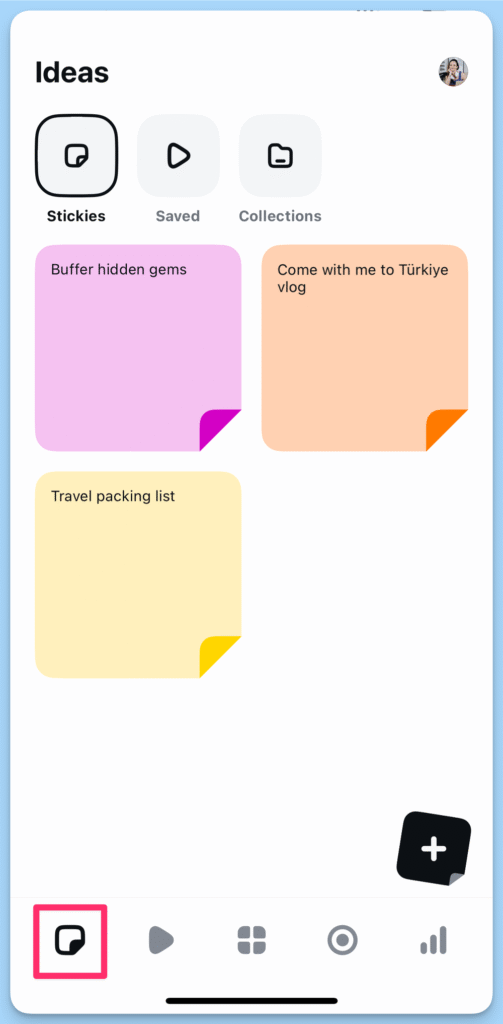
With Edits, you can save thoughts as sticky notes by tapping the sticky note icon at the bottom left. To add a new note, tap the ‘+’ icon at the bottom right.
You can also access all your saved Instagram reels by tapping ‘Saved’ at the top, along with your Instagram collections.
⚡️ Pro Tip: Save reels with audio you want to use later. Edits lets you tap ‘Use Audio’ to automatically create a new project with that audio on your timeline.
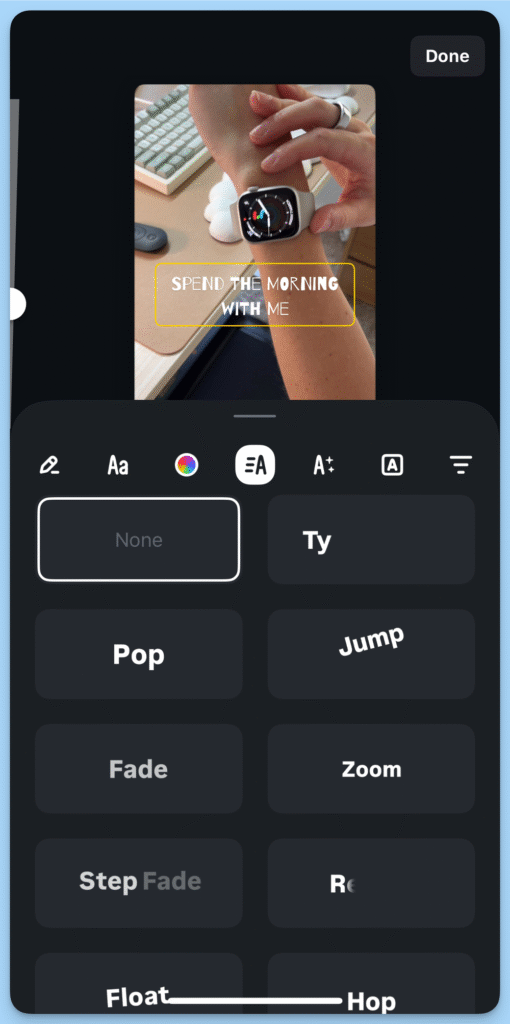
Experiment with New Fonts
- Tired of Instagram’s standard fonts? Edits offers around 50 new fonts, organized into categories like Simple, Bold, and Handwritten.
- Each font is fully customizable with animations, styles, and background options, giving you endless creative possibilities.
- Exploring different combinations is one of the app’s best features — plenty of variety without feeling overwhelming.
Use the Green Screen for Quick Wins
Adding a talking head overlay is a powerful way to explain content, but traditional editing can be tricky. TikTok simplifies this, but sharing TikTok videos on Instagram often requires removing the watermark.
Edits makes green screen videos effortless. Start by adding your background footage or image to a project, then tap the green screen button below the timeline. Adjust the overlay’s size and position by pinching and dragging.
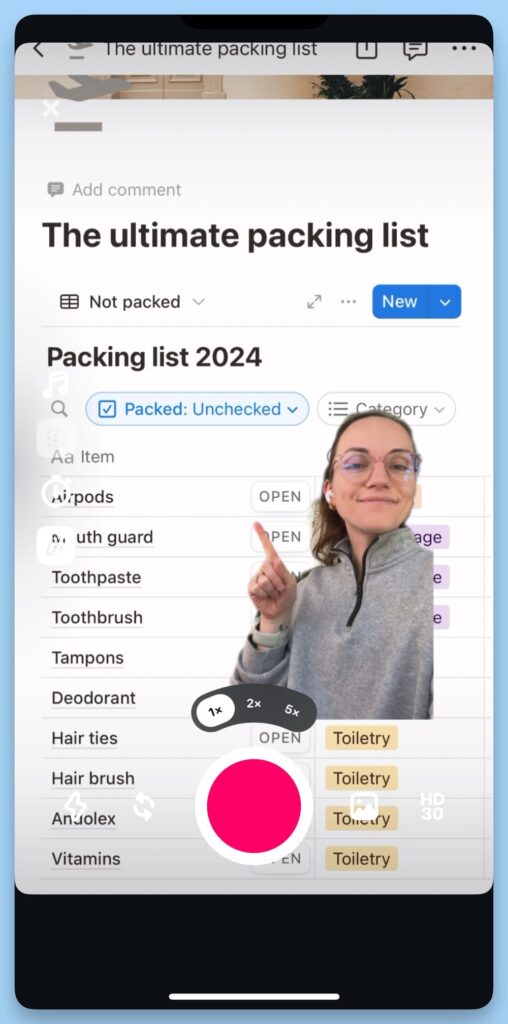
As you record, the background plays in real time, letting you see exactly what you’re talking about. While you can’t edit the green screen clip afterward, this simplicity often saves time and avoids messy adjustments.
If you want an editable green screen, film with your phone’s camera first and then use the cutout feature in Edits.
Get Creative with Cutouts
One of Edits’ most exciting features is Cutout, which lets you layer a portion of another clip or image over your main footage. You can select the area manually or let Edits do it automatically.
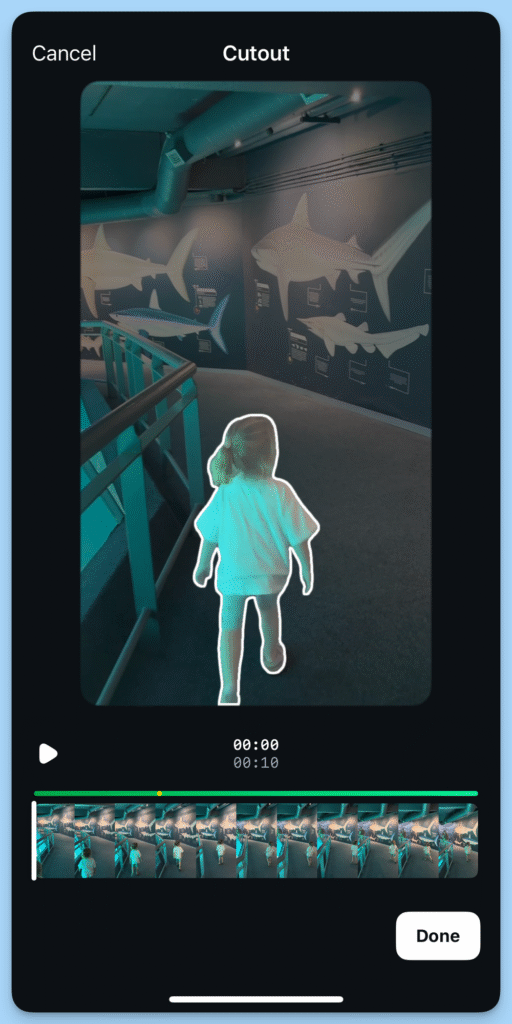
This makes it easy to create fun effects, like layering the same clip multiple times — for example, having someone appear three times in one scene.
Currently, cutouts can’t be layered over text; they always appear on top of all timeline elements. Hopefully, Instagram will add this feature soon!
Don’t Be Shy with Sound Effects
Sound effects can turn a good video into a scroll-stopping clip, but many editors lack built-in options, or their libraries are hard to navigate.
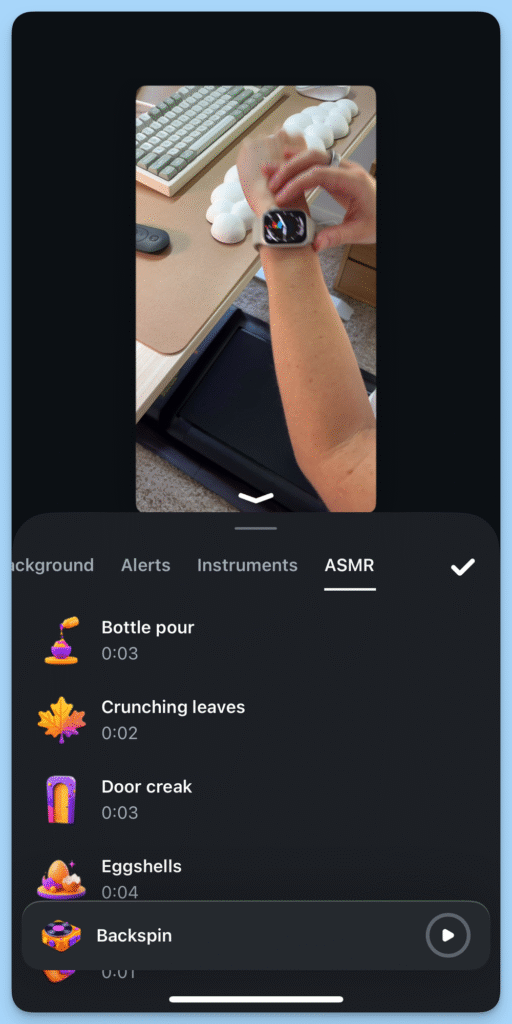
Edits includes around 50 sound effects, organized into clear categories with icons for easy browsing.
For best results, use subtle effects like bubble pops or clicks when text appears, or swooshes for quick transitions to make your videos feel dynamic and polished.
Scroll Through Trends for Inspiration
Finding trending formats and audio on Instagram can be hit-or-miss, but Edits brings them straight into the app. The native video tab acts like a reels feed, featuring only trending clips.
Tap the video icon at the bottom left to explore. When you spot audio you like, tap ‘Use Audio’ to start a new project with it already on your timeline — saving time and sparking creativity.
Let Insights Guide Your Next Move
Edits makes it easier to learn from your Instagram analytics by integrating them directly into the app.
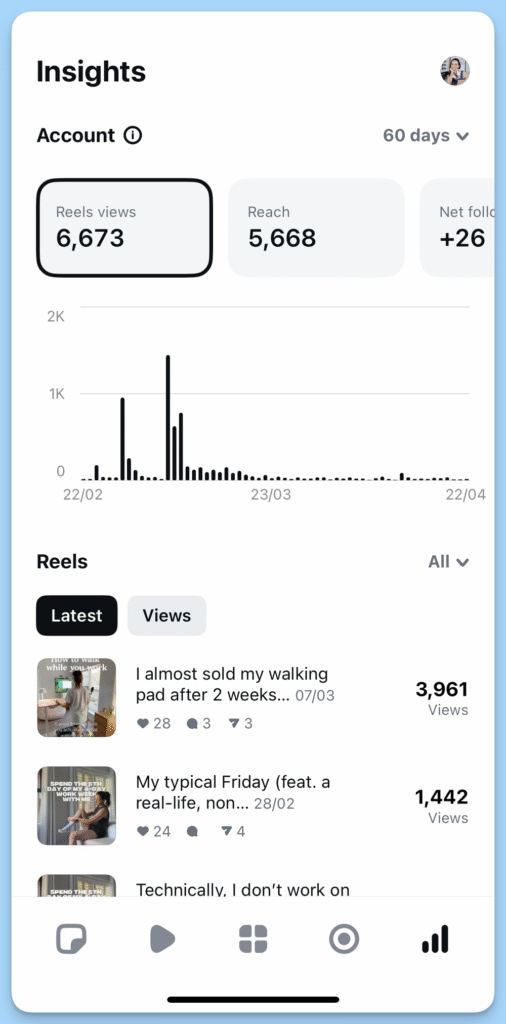
Tap the graph icon at the bottom right to view real-time Insights for all your reels over the last 7–60 days. Select a reel to see detailed metrics, including skip rate, like rate, and share rate — some unique to Edits.
The retention graph shows exactly when viewers drop off, helping you identify what works and what might need improvement.
If You’re an Instagram Creator, Edits Is a No-Brainer
Edits streamlines the entire video process — from ideas and filming to editing and exporting — all in one intuitive, creator-focused app.
Exciting features coming soon include:
- Keyframes: Adjust precise moments for timing, motion, and effects.
- Modify: Use AI prompts to change the look and feel of your videos.
- Collaboration: Share drafts with teams, creators, or brands for feedback.
- More Effects: Additional fonts, text animations, transitions, voice effects, filters, and royalty-free music.
Will Edits replace CapCut? For Instagram-first creators, absolutely. But if you focus on longer or more complex videos — especially for YouTube or desktop workflows — you may prefer your current setup.
Edits excels at short-form content, offering simplicity and speed, but advanced creators seeking full-featured editing tools might still rely on more comprehensive software.
Frequently Asked Questions
What is Instagram Edits?
Instagram Edits is a mobile video editing app designed to simplify creating short-form content with advanced tools and effects.
Is Instagram Edits free?
Yes, the app is completely free with no hidden fees, allowing creators to edit, export, and post without watermarks.
Can I use Instagram Edits for TikTok or YouTube?
Absolutely. While optimized for Instagram, videos can be exported in high-quality formats and shared across other platforms.
What makes Edits better than Instagram’s native editor?
Edits offers advanced features like a frame-accurate timeline, green screen, cutouts, sound effects, and AI-powered tools.
Can I add my own audio in Edits?
Yes. You can use Instagram’s audio library, saved audio, or your own recordings for voiceovers and background sound.
Does Edits support collaboration?
A collaboration feature is coming soon, allowing creators to share drafts for feedback from teams, brands, or fellow creators.
Is Edits suitable for advanced video projects?
Edits is best for short-form content. For longer, complex projects, desktop tools or apps like CapCut may be more suitable.
Conclusion
Instagram Edits is a game-changer for creators focused on short-form content. It combines idea capture, filming, editing, and exporting in one intuitive, mobile-friendly app, making the video creation process faster and more seamless.
With features like green screen, cutouts, sound effects, text animations, and AI-powered tools, Edits empowers both beginners and seasoned creators to produce polished, engaging videos. While it may not replace full-featured desktop editors for complex projects, it’s perfect for Instagram-first creators looking to elevate their short-form content effortlessly.
